
Add by Photo
The add button in the tab bar is the fastest way to get collectibles into TopVault. You photograph them, TopVault matches each photo against the database, and you decide at the end where they go.
Nothing you choose along the way locks you in. The method you start with does not stop you using the other one, and adding to your collection does not stop you turning the batch into a trade.
Step 1: Choose a method
Tap the add button (the center button on mobile, the top-right action on desktop) and pick how you want to start.
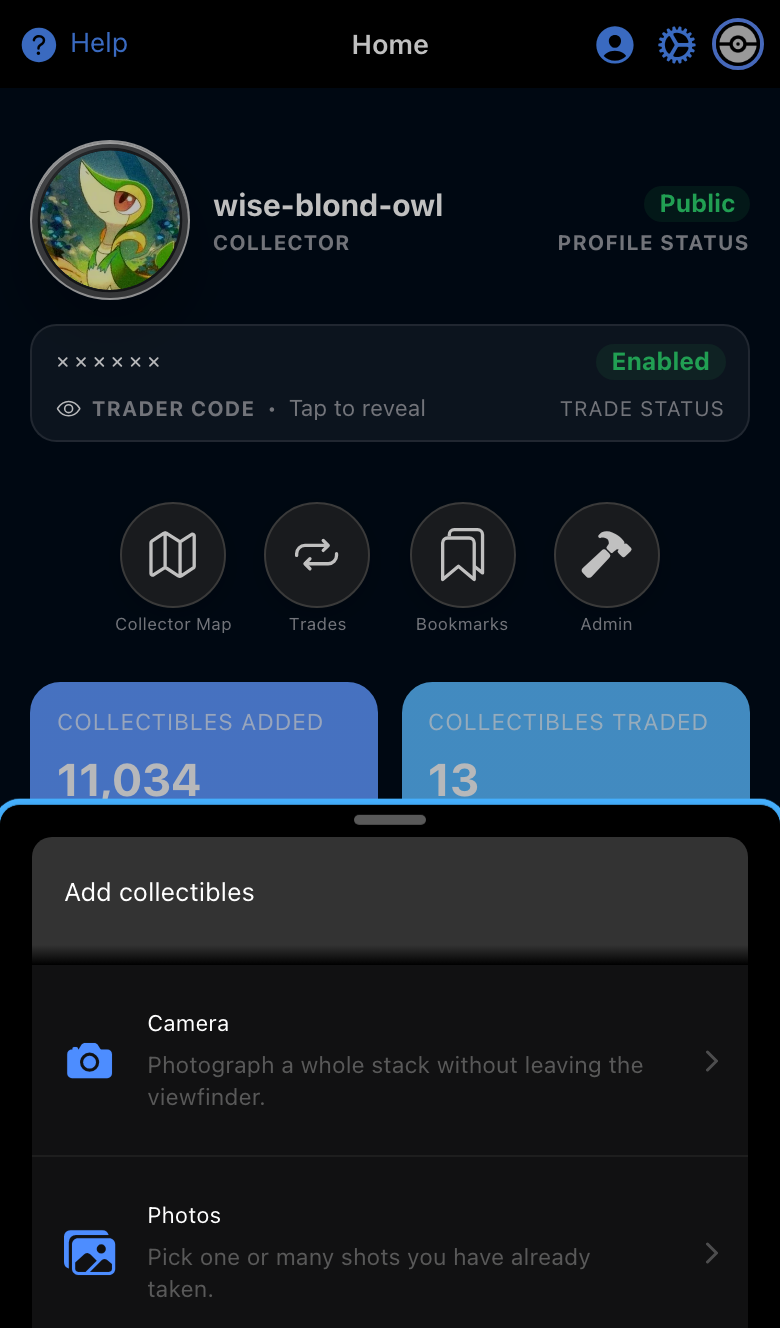
- Camera opens a live viewfinder with card detection.
- Photos opens your photo library, where you can select several images at once.
Either choice takes you straight into that picker. You are not committed to it, the next screen offers both again.
Step 2: Capture or pick
With the camera
The camera stays open until you are done, so you can photograph a whole stack in one sitting:
- Line the collectible up in the frame. Auto-detect highlights the card edges when it recognizes one.
- Tap Capture.
- Adjust the suggested crop if it needs it, then tap Use Photo.
- You return to the viewfinder for the next one.
A row of thumbnails builds up underneath the preview as you go, so you can see what you have already shot. Tap a thumbnail to view it larger, or use the ✕ on it to drop a bad frame and shoot it again.
When the stack is done, tap Done. The button shows how many photos you took.
With your photo library
Select one or several photos. TopVault steps through them one at a time with a suggested crop for each, so you confirm the framing before it tries to match.
Getting good matches
Portrait orientation, the collectible in focus, and a dark solid background give TopVault the best chance of finding the right match. Photos stay private on your device, see Photos and Privacy.
Step 3: Review the matches
Every photo becomes a row in the adding tray. TopVault analyzes each image and proposes a match from the database.
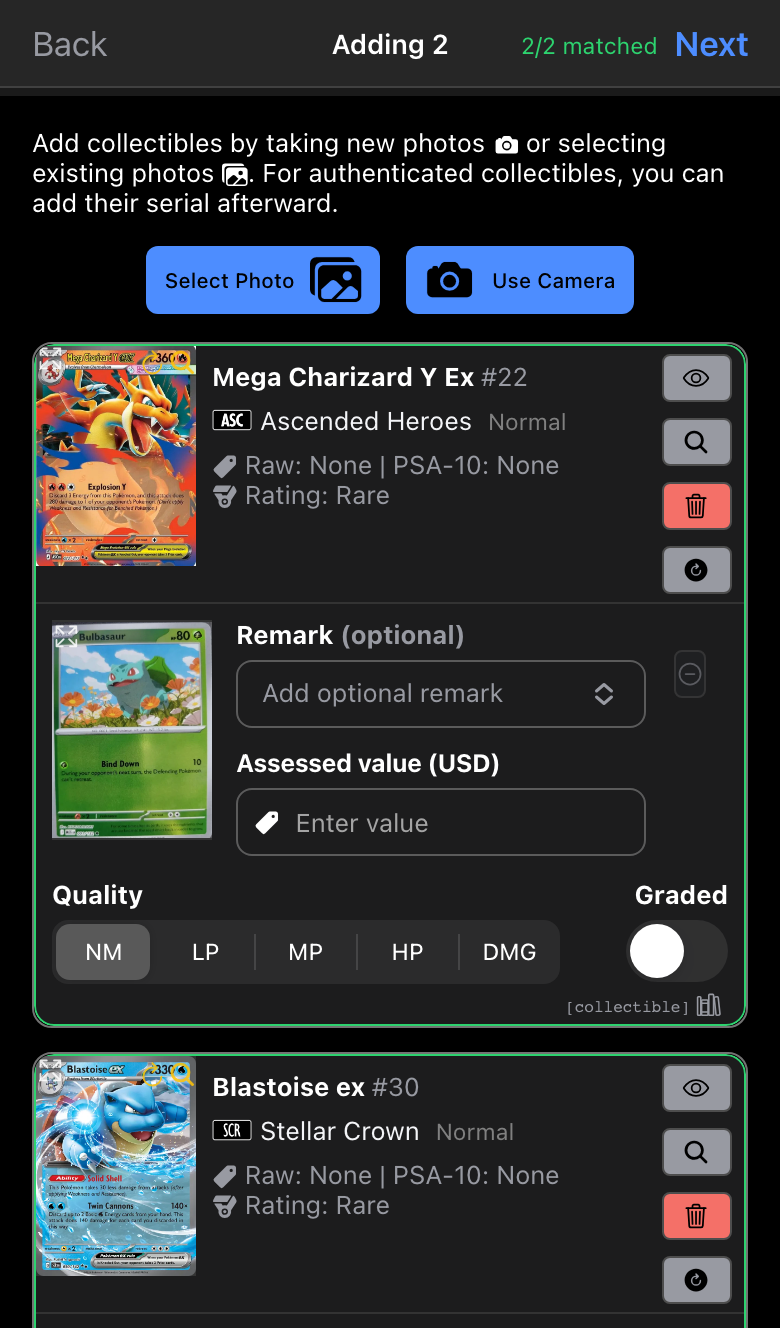
The counter beside Next tells you how many photos have resolved to a collectible. Next stays disabled until all of them have, so nothing is added half-identified.
For each row you can:
- Confirm or change the match. If the proposed match is wrong, or TopVault could not identify the photo, use the search controls on the row to pick from the suggested matches or search the catalog by name.
- Record condition with the quality selector, and mark the item graded to add an authenticator and serial.
- Add a remark or an assessed value.
- Remove the row if you no longer want it.
You can also keep adding at this point. Select Photo and Use Camera are both at the top of the tray, so a batch that started at the camera can be topped up from your library and the other way round.
Below the rows, notes and goals apply to the whole batch. Anything you set there, description, place, date, goal associations, is applied to every collectible you are adding, and can still be edited individually afterward.
Step 4: Decide where they go
Tap Next and TopVault asks where the batch belongs.
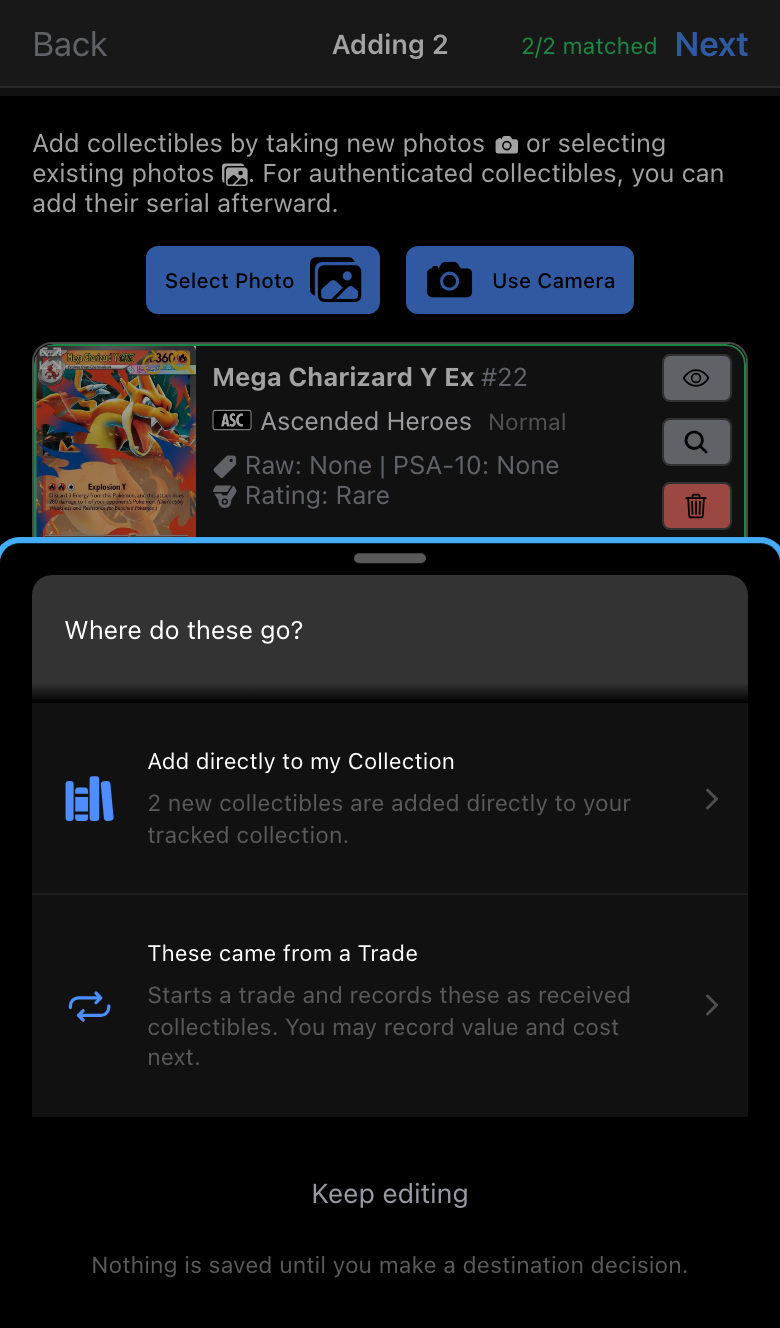
- Add directly to my Collection files them as items you own, with the notes and goals you set.
- These came from a Trade starts a trade and records them as what you received, so you can log what you gave in return. If you already have a trade open, this option names that trader and adds to it instead.
This is the last step on purpose. Collectors routinely start adding to their collection and only realize partway through that the cards came from a trade, asking here means that realization costs nothing. Nothing is saved until you answer, and Keep editing returns you to the tray.
Picking up where you left off
Closing the tray does not discard the batch. An Adding bar stays at the bottom of the screen with a count of what is in progress:
- Continue reopens the tray.
- Exit discards the batch.
That lets you go look something up in another tab mid-batch and come back to it.
Related reading
- Manage Your Collection: everything else you can do with items once they are added.
- Trades: the full trade workflow, including the sending side and trade details.
- Photos and Privacy: how TopVault stores and encrypts your photos.