Clone a Shared Goal
When another collector shares a goal with you, you are looking at their list of target items. Cloning turns that list into a goal of your own, same references, your progress.
A clone is a snapshot, not a subscription. Once you clone a goal it is entirely yours: rename it, recolor it, add items, remove items. Nothing you do changes the original, and nothing the original owner does changes your copy.
Open a shared goal
A shared goal link looks like this:
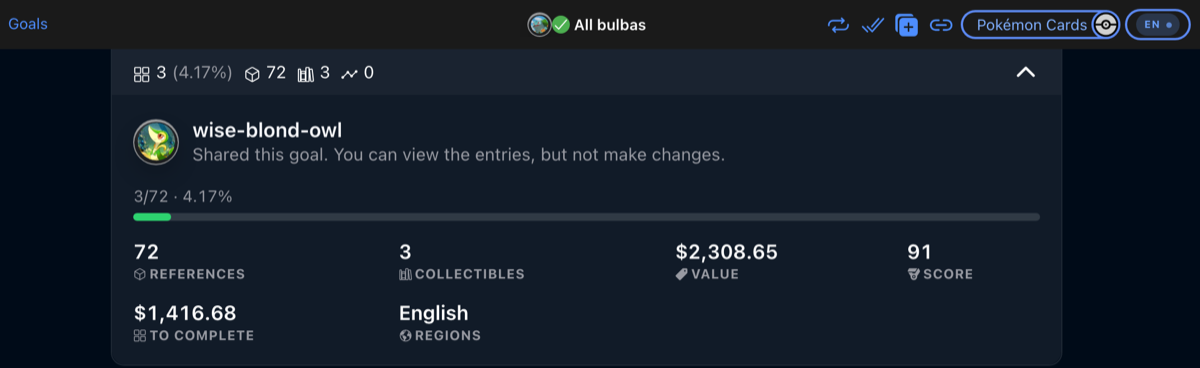
https://vault.top/app/lists/pokemon-card/share/<share-id>Open it and you will see the goal's name, its progress, and every reference on it. You can browse and filter the items, but you cannot change anything, it is not your goal.
Expand the details at the top to see whose goal it is, along with the usual progress and stats.
Clone it
The clone action lives in the page actions at the top of the screen, the ⧉ icon. Tap it to open the clone sheet.
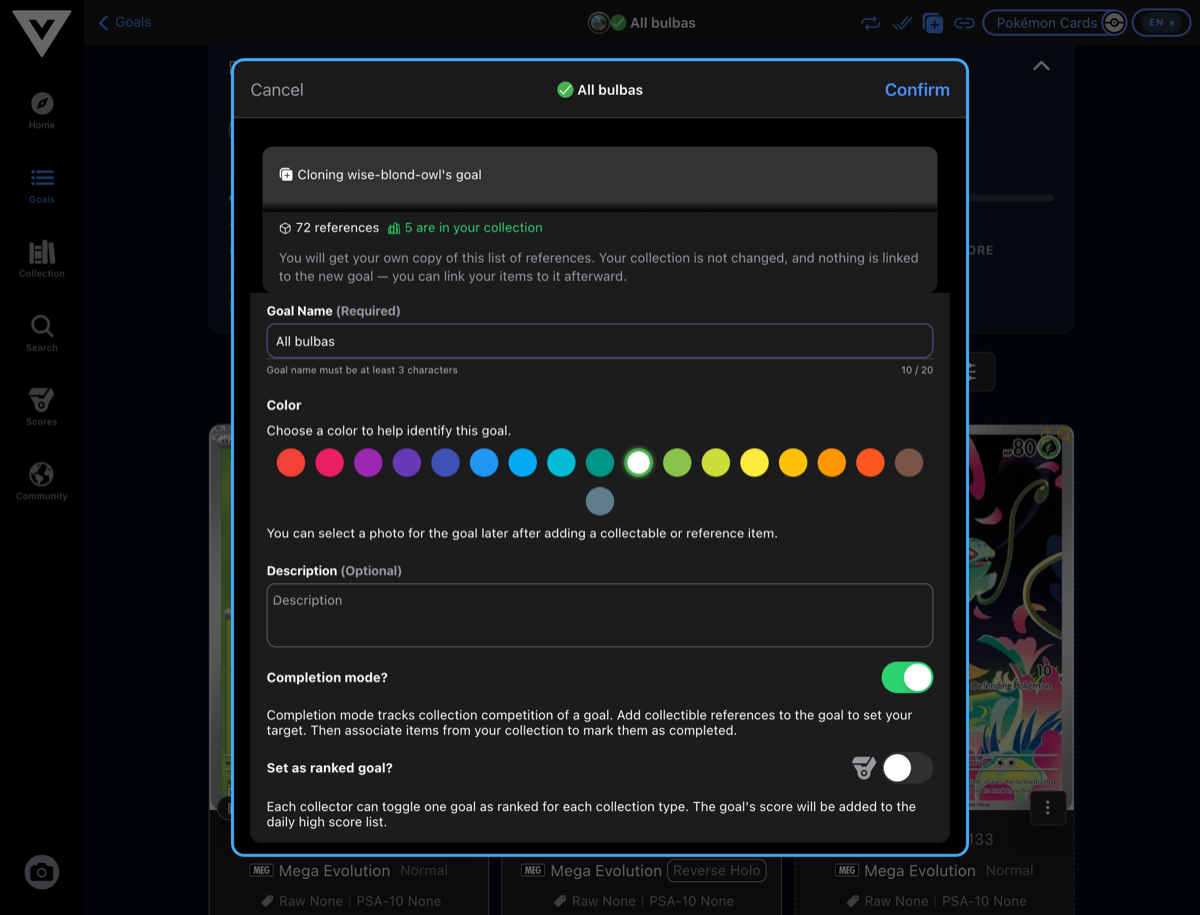
Everything is prefilled from the goal you are cloning, and everything is editable before you confirm:
| Field | Default |
|---|---|
| Goal name | The source goal's name. Change it to anything you like. |
| Color | The source goal's color. |
| Description | The source goal's description, if it has one. |
| Completion mode | Matches the source. A completion goal clones as a completion goal, so the percentage still means something. |
| Set as ranked goal | Always off. Cloning never takes over your ranked slot, turn it on deliberately if you want it. |
The summary at the top of the sheet tells you two things before you commit:
- How many references the clone will take.
- How many of them are already in your collection. This is the number most worth looking at, it is your head start.
Tap Confirm and the new goal is created and opened.
What a clone takes, and what it does not
A clone takes references only.
Your collection is never touched
Cloning creates one new goal. It does not add, edit, move, or link anything in your collection. Your items stay exactly where they were.
| Taken | Not taken |
|---|---|
| Every reference item on the goal | The owner's collection items |
| The name, description, and color | The goal photo (it is a photo of their card) |
| Completion or flat mode | Their reference-note targets, like "PSA 10" or "1st edition" |
| Ranked status |
The last one is worth explaining. A reference note records a specific target for an item, a particular grade, a particular edition. Those are the original owner's targets, not yours, so a clone starts each reference plain. You can add your own conditions afterward. See Goals for how reference notes work.
Your new goal starts at 0%
This surprises people, so it is worth being direct about it: a freshly cloned completion goal reads 0%, even if you already own half of the items on it.
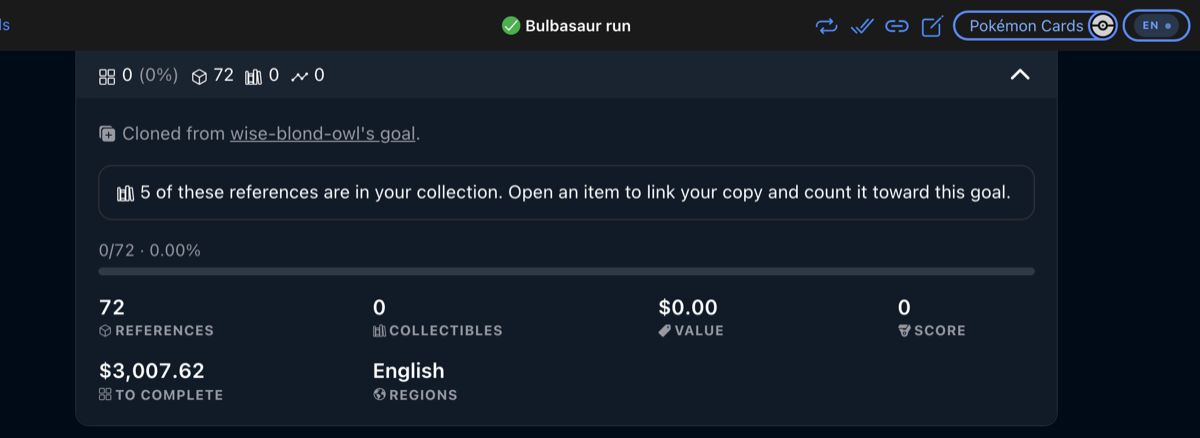
That is correct, and it is deliberate. Progress on a goal counts items you have explicitly linked to it. Cloning does not link anything on your behalf, because which of your copies fulfills which reference is your decision, especially if you own several copies of the same card.
So the goal tells you where you stand instead:
5 of these references are in your collection. Open an item to link your copy and count it toward this goal.
Link a copy the same way you would on any goal: open the item and associate the copy you own. Each one you link moves the percentage. See Manage Your Collection for the linking flow.
Where it came from
A cloned goal keeps a quiet line of provenance in its details:
Cloned from wise-blond-owl's goal.
It links back to the original share. The name is resolved fresh every time you look, so if the other collector changes their display name, the credit stays correct.
Cloning without an account
You do not need an account to open a shared goal, anyone with the link can view it. You do need one to clone it, because the clone becomes a goal on your profile.
Tap Clone this goal as a guest and you will get the short version of what cloning does, plus a way to sign up.
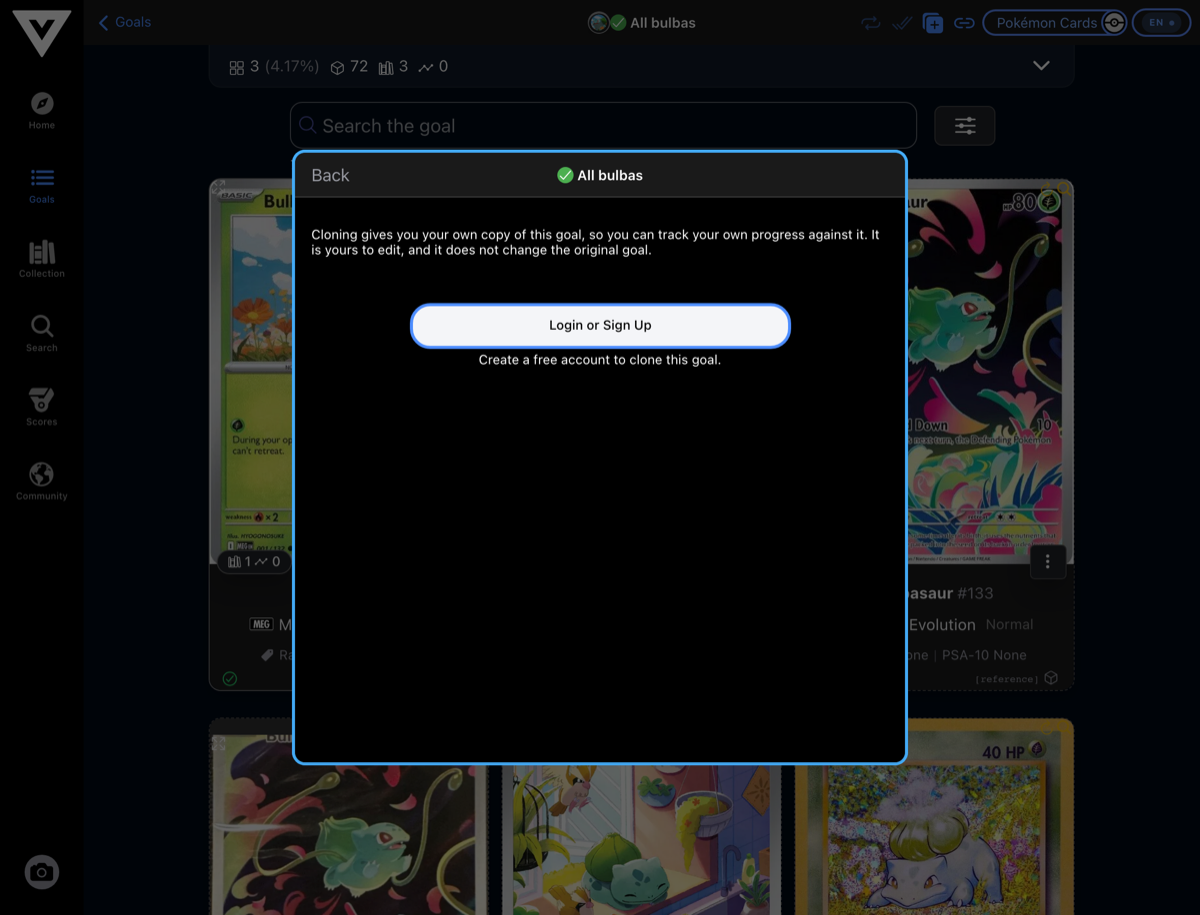
You will not lose the goal you were looking at. TopVault remembers which goal you were about to clone, and reopens the clone sheet on that goal once you are signed in. If you would rather keep looking around first, Keep browsing takes you back to the goal with nothing changed.
A brand-new account has an empty collection, so the overlap count will be zero, your cloned goal is simply a list of things to find.
Cloning the same goal twice
Nothing stops you. If you already cloned a goal, its details on the shared page say so and link to the copy you already have:
You already cloned this goal. Open it
Clone it again anyway if a second copy is genuinely what you want, a stricter variant of the same chase, for instance. The owner's clone count only counts distinct collectors, so cloning twice does not inflate it.
If someone clones your goal
When one or more collectors have cloned a goal of yours, its details pick up a Clones stat with the number. The stat only appears once there is at least one clone.
This is the only place the number is shown, and it is only shown to you, the collectors who open your share link never see it. You are never told who cloned a goal, only how many did.
Good to know
- Cloning is one-way. Later changes to the original goal do not flow into your copy, and your changes never flow back.
- The whole goal is cloned, not the filtered view. If you have filters active on the shared page, the clone still takes every reference, the sheet always shows the true count.
- Deleting either goal leaves the other alone. If the original owner deletes their goal or makes their profile private, your clone is unaffected.
- Empty goals cannot be cloned. If a shared goal has no references, the button is not shown.
- The 100-goal limit still applies. If you have hit it, delete a goal before cloning another.
See also: Goals for creating and managing goals from scratch, and Photos and Privacy for what a share link does and does not reveal.